What are Secrets
The Rocketadmin Secrets allow users to securely store and manage sensitive information like API keys, passwords, tokens or similar data.
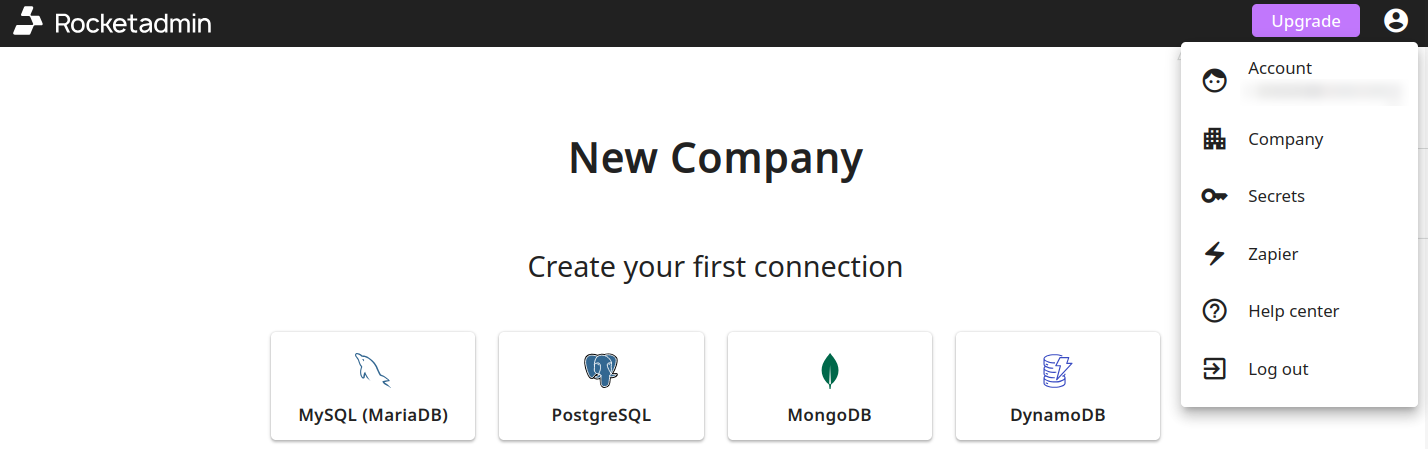
To open the secrets settings, from Dashboard click the icon and then select Secrets:
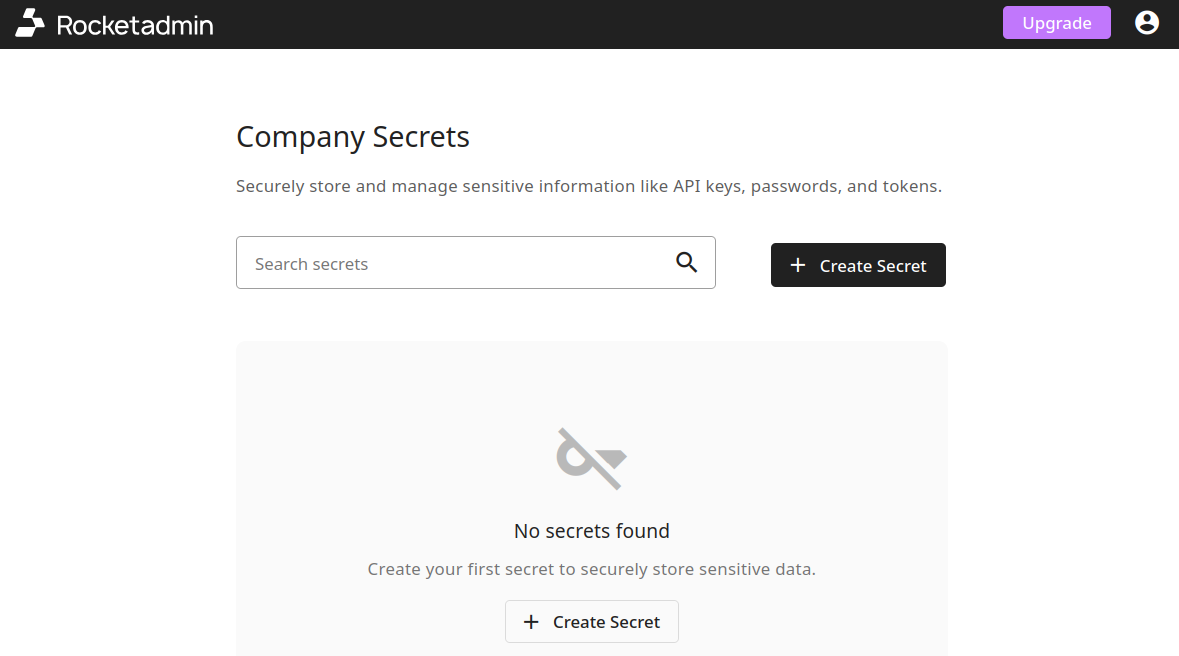
The Company Secrets screen appears:
Creating a secret
To add a new secret:
-
From the Company Secrets screen, click the Create Secret button.
-
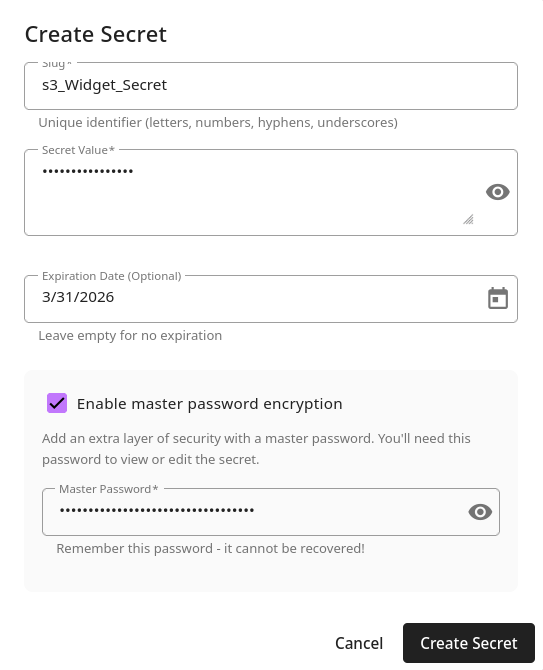
In the Create Secret dialog, provide the following details:
-
Name of the secret
-
Secret Value - the sensitive information you want to store
-
Expiration Date (Optional) - select from the calendar or leave empty for no expiration
-
Enable master password encryption - if enabled, it adds an extra layer of security
Important notes- The master password cannot be recovered!
- You will need this password when editing the secret
-
-
Click the Create Secret button.
The secret has been created and is listed in the Company Secrets screen:
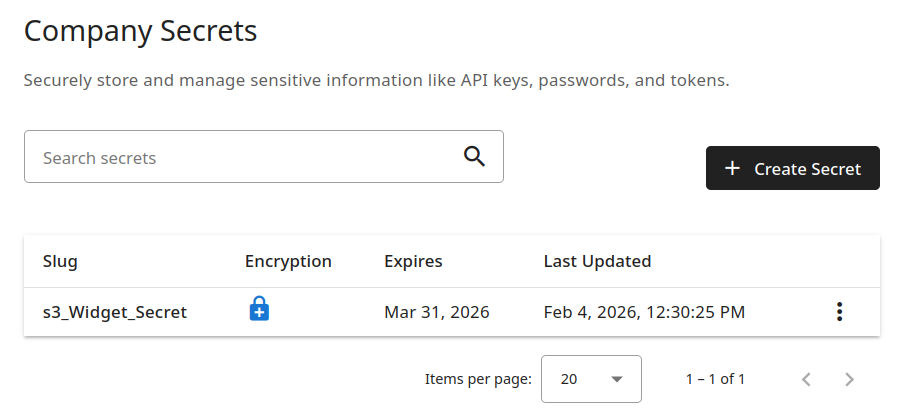
The Encryption icons of the secrets have different colors depending on their type - Standard Encryption or Protected with Master Password.

Editing a secret
To edit a secret:
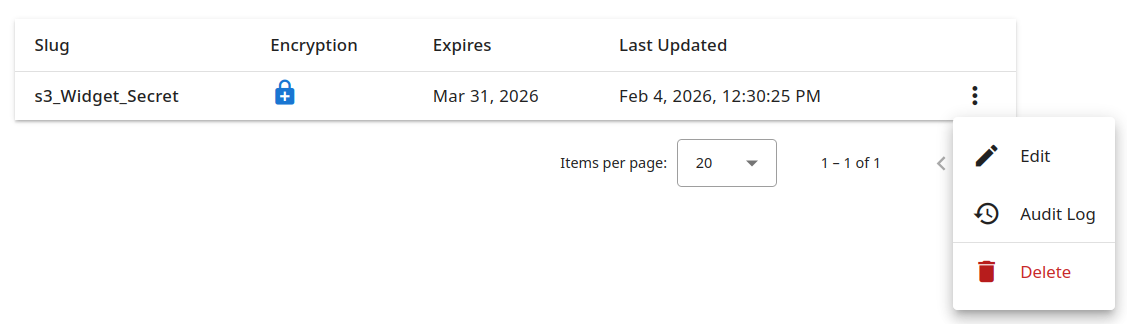
- From the Company Secrets screen, click the icon next to the secret you want to edit:
-
Select Edit.
-
In the Edit Secret dialog
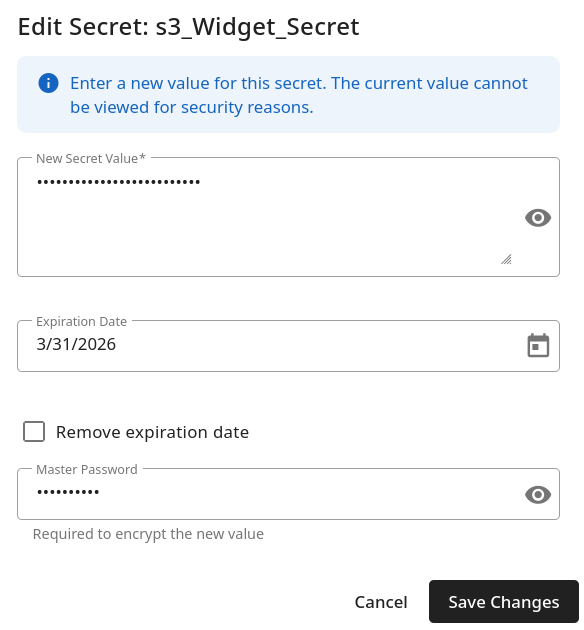
you can:
-
enter New Secret Value (the current one is not visible due to security reasons)
-
change the Expiration Date or remove it
If you have enabled master password encryption, you must enter the password to complete the edit.
- Click the Save Changes button.
The secret has been updated.
Deleting a secret
To delete a secret:
-
From the Company Secrets screen, click the icon next to the secret you want to delete:
-
Select Delete.
-
The Delete Secret dialog appears with the message: "Are you sure you want to delete the secret <secret-name>?"
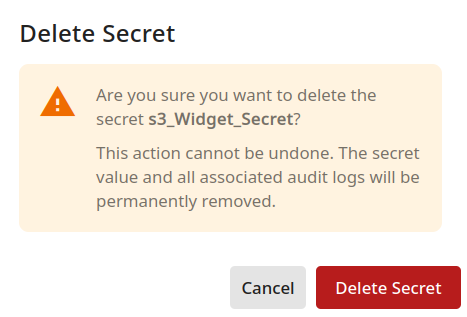
This action cannot be undone. The secret value and all associated audit logs will be permanently removed.
- Click the Delete Secret button.
The secret has been deleted.
Reviewing the audit log
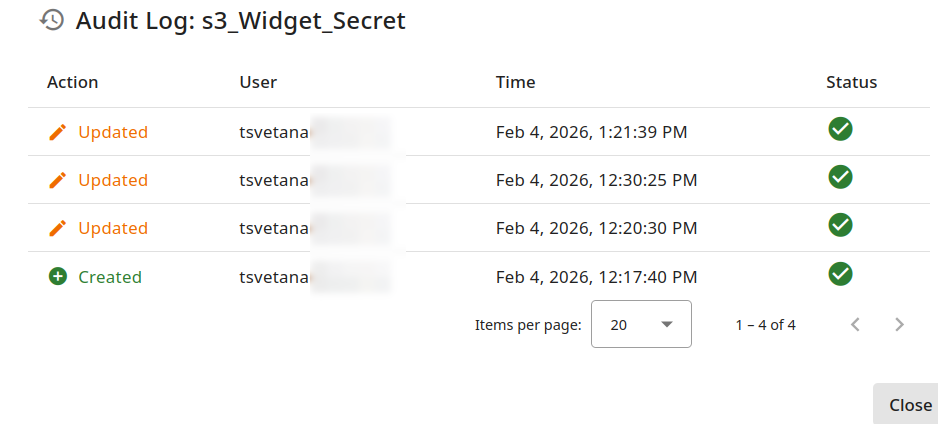
The Company Secrets audit log provides comprehensive historical records of user activity, including the specific actions performed, the users involved, timestamps of those actions, and their resulting status.
To view the audit log:
-
From the Company Secrets screen, click the icon next to the secret for which you want to review the log:
-
Select Audit Log.
-
The Audit Log dialog appears with the list of actions performed on the secret:
-
Click the Close button to close the dialog.