What are schemas
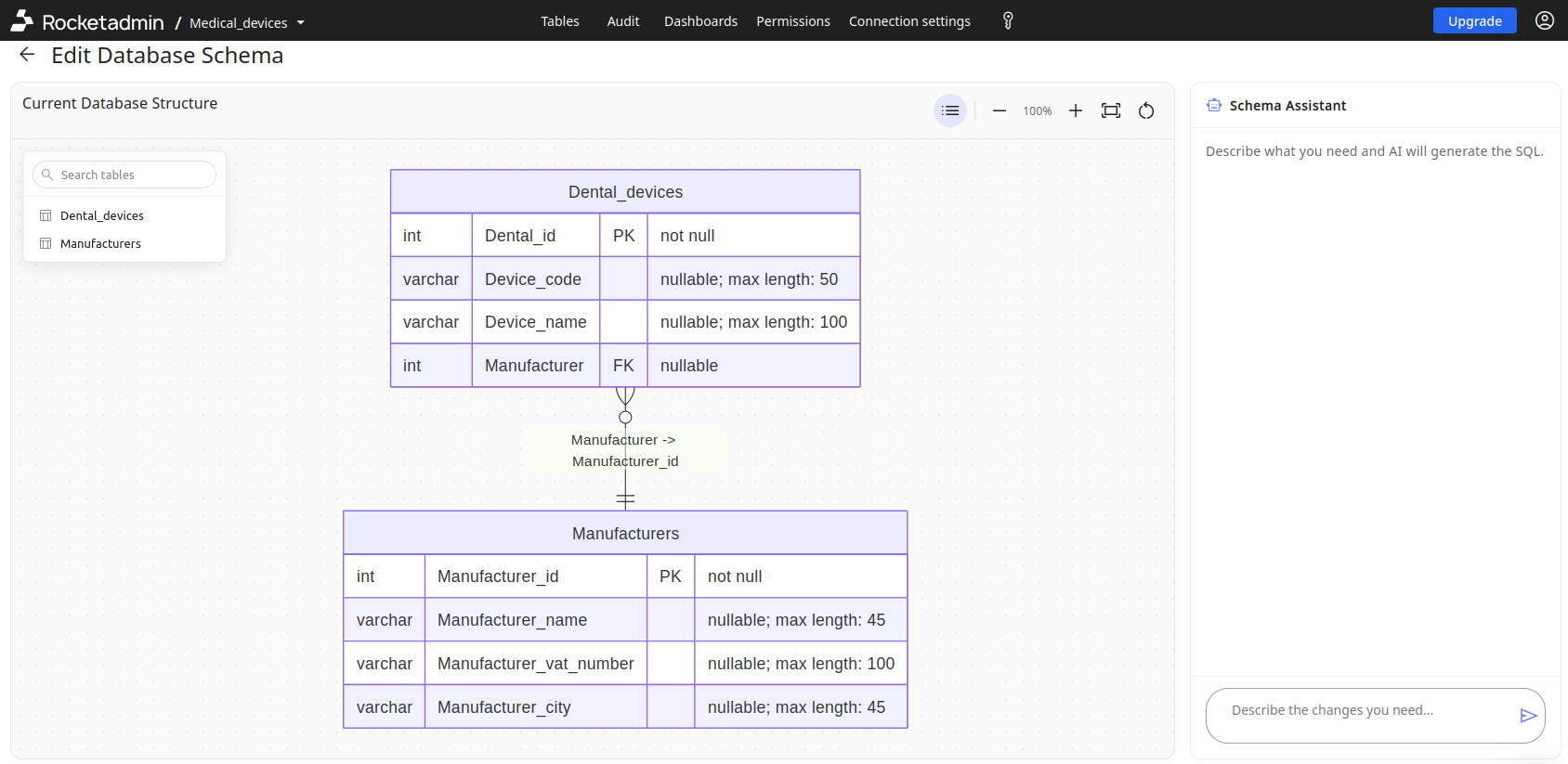
Rocketadmin uses database schemas to define and display and the structure and organization of relational databases to ensure consistent predictable data access. Schemas specify how tables are organized, the fields they contain, and the relationships between them.
To simplify schema creation and editing, we provide an AI Schema Assistant that generates the needed schema configuration based on predefined use cases or on a natural-language description of your requirements.
Here is an example of a schema which contains two connected tables:
Where to find schemas
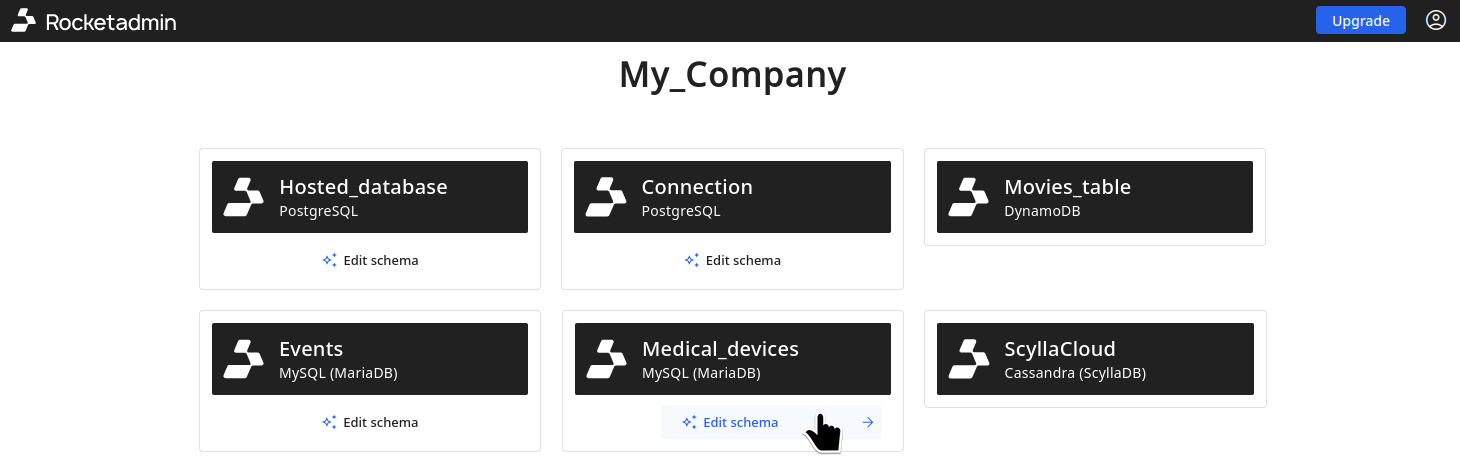
You can open a database schema from the main Connection's screen by clicking on Edit schema under the name of a given connection:
Schema management
Generating schemas with AI
When you add a new connection with an empty database or create a new hosted database, you are redirected to the Tables Schemas screen:
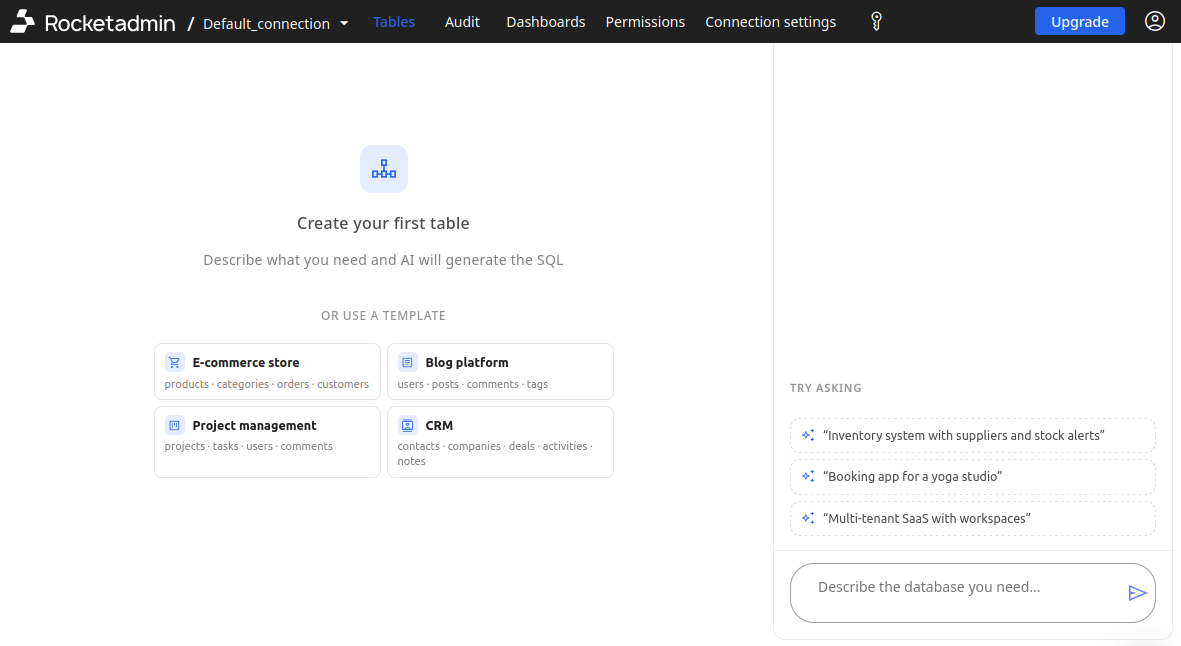
You can choose an option from our predefined templates or directly input your requirements in the AI Assistant chat field.
For example, the following is the result schema of a Booking app for a yoga studio:
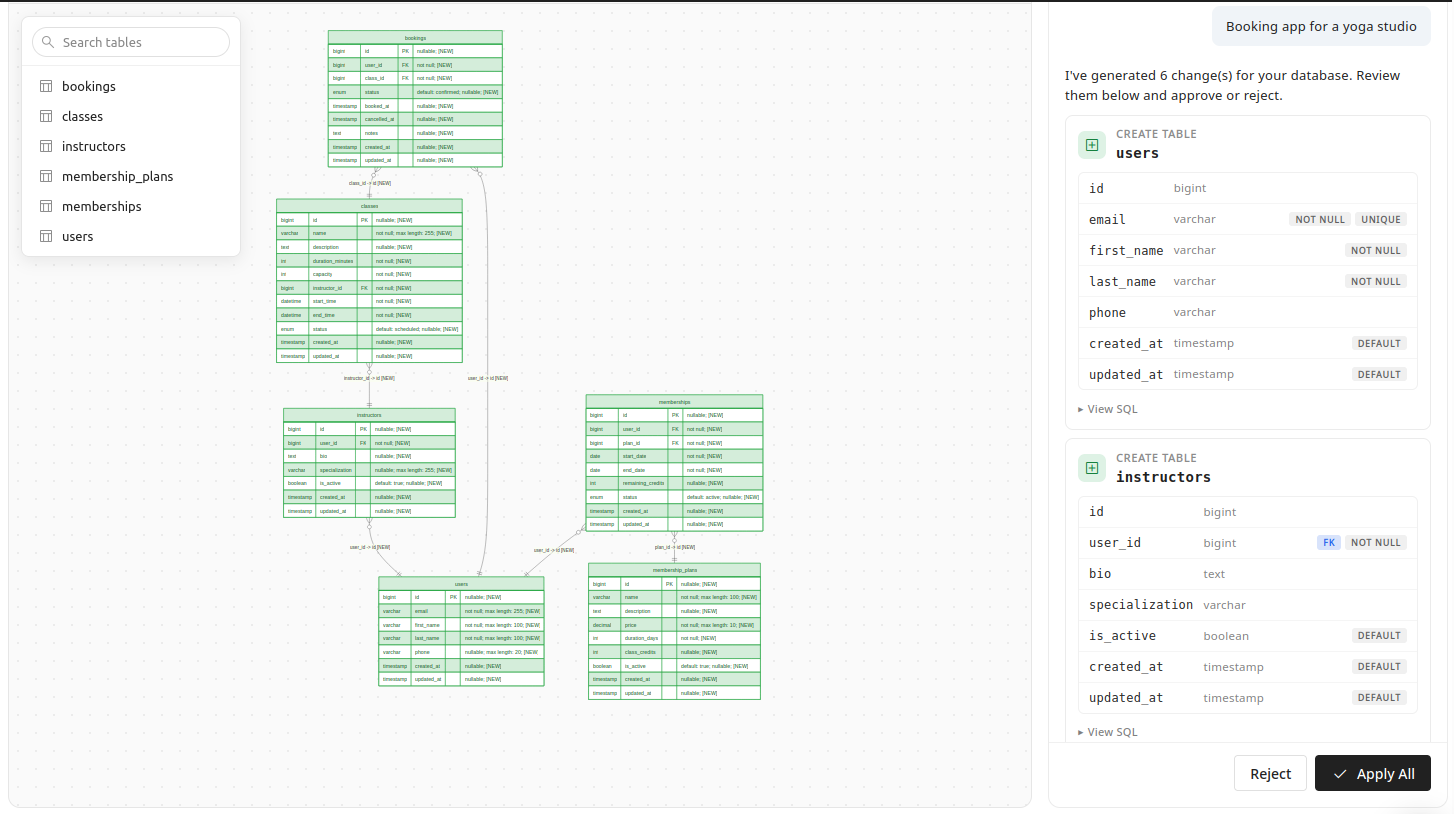
If the outcome meets your needs, click Apply all.
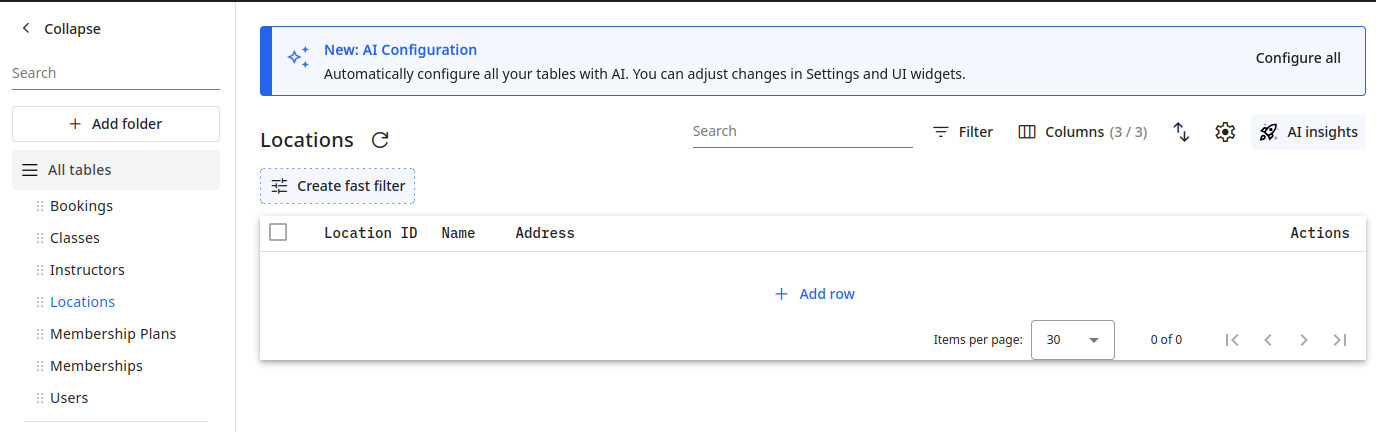
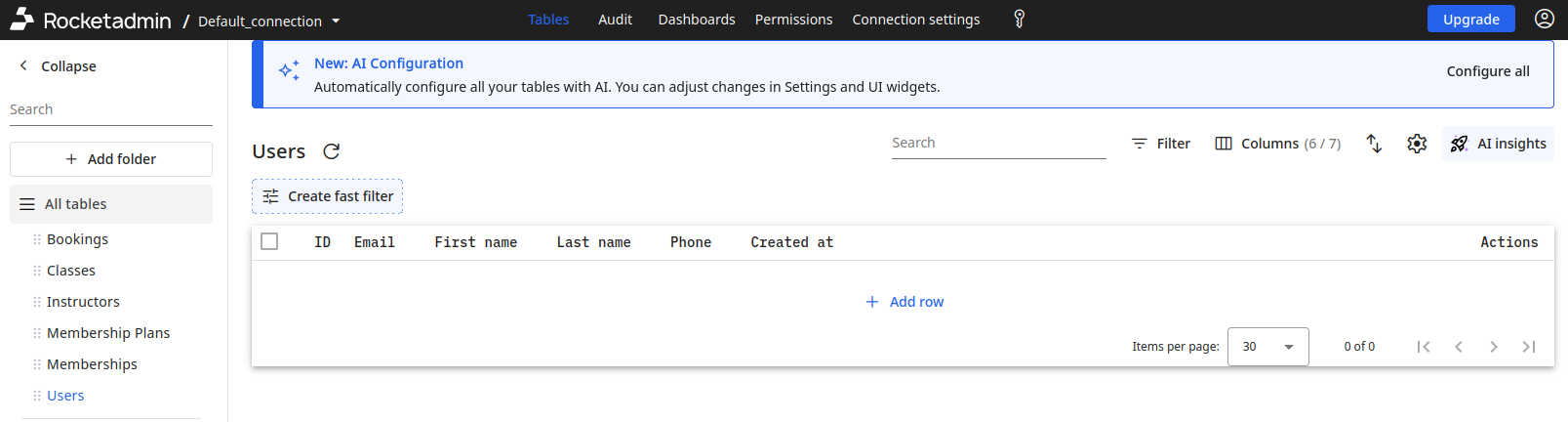
You can now navigate to the Tables menu and start adding data:
Editing schemas with AI
If you need to make further changes to a schema or its tables, the AI Assistant is here to help.
For example, you may want to extend the above use case by adding a Locations table to represent the different yoga studio locations operated under your brand. To achieve this, ask the AI Assistant something similar to the following:
Add a Locations table with the columns location_id (primary key), name, and address. Establish relationships between Locations and the Bookings, Classes, and Instructors tables via foreign keys.
After the changes have been proposed to you, click Apply all.
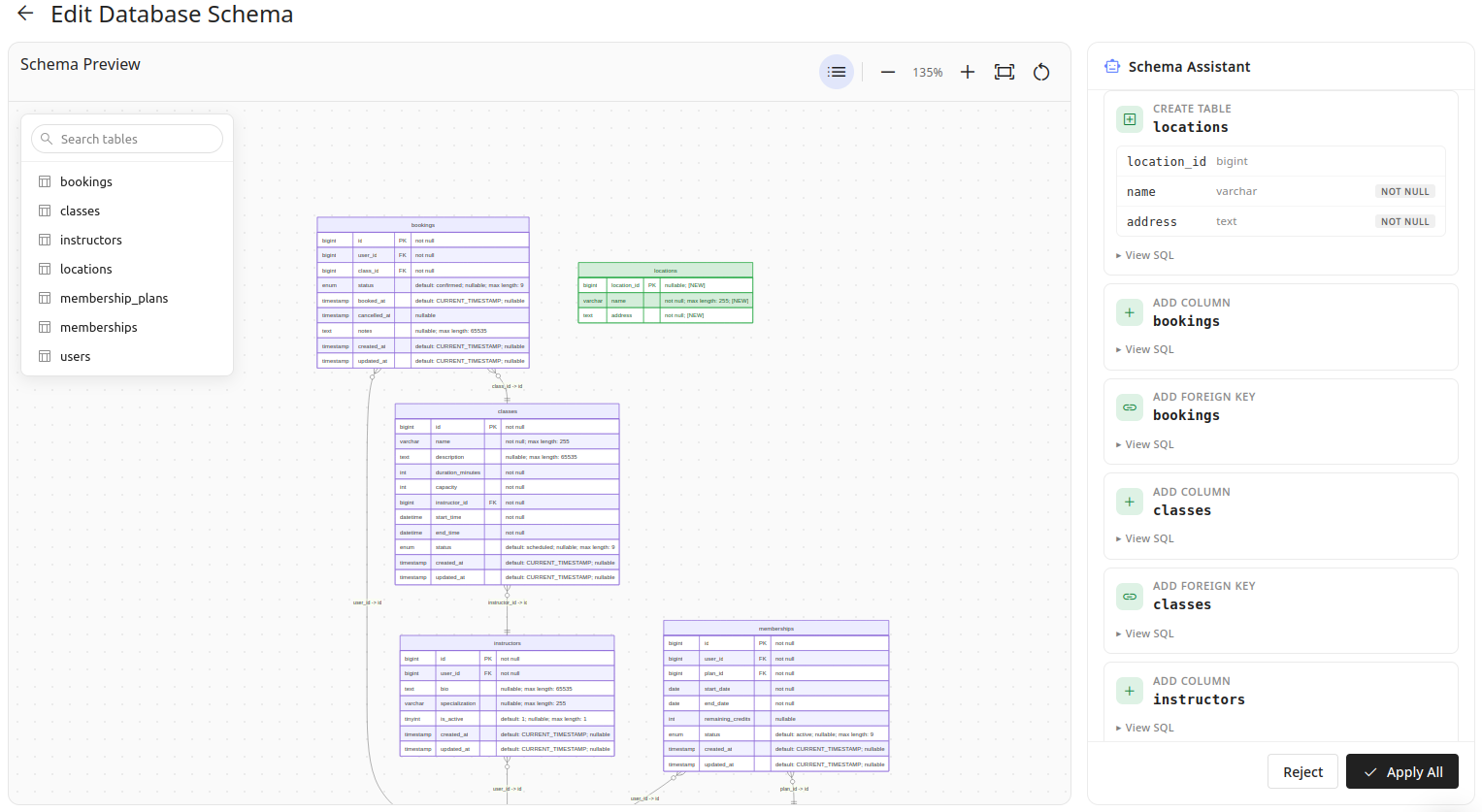
The schema will be updated accordingly:
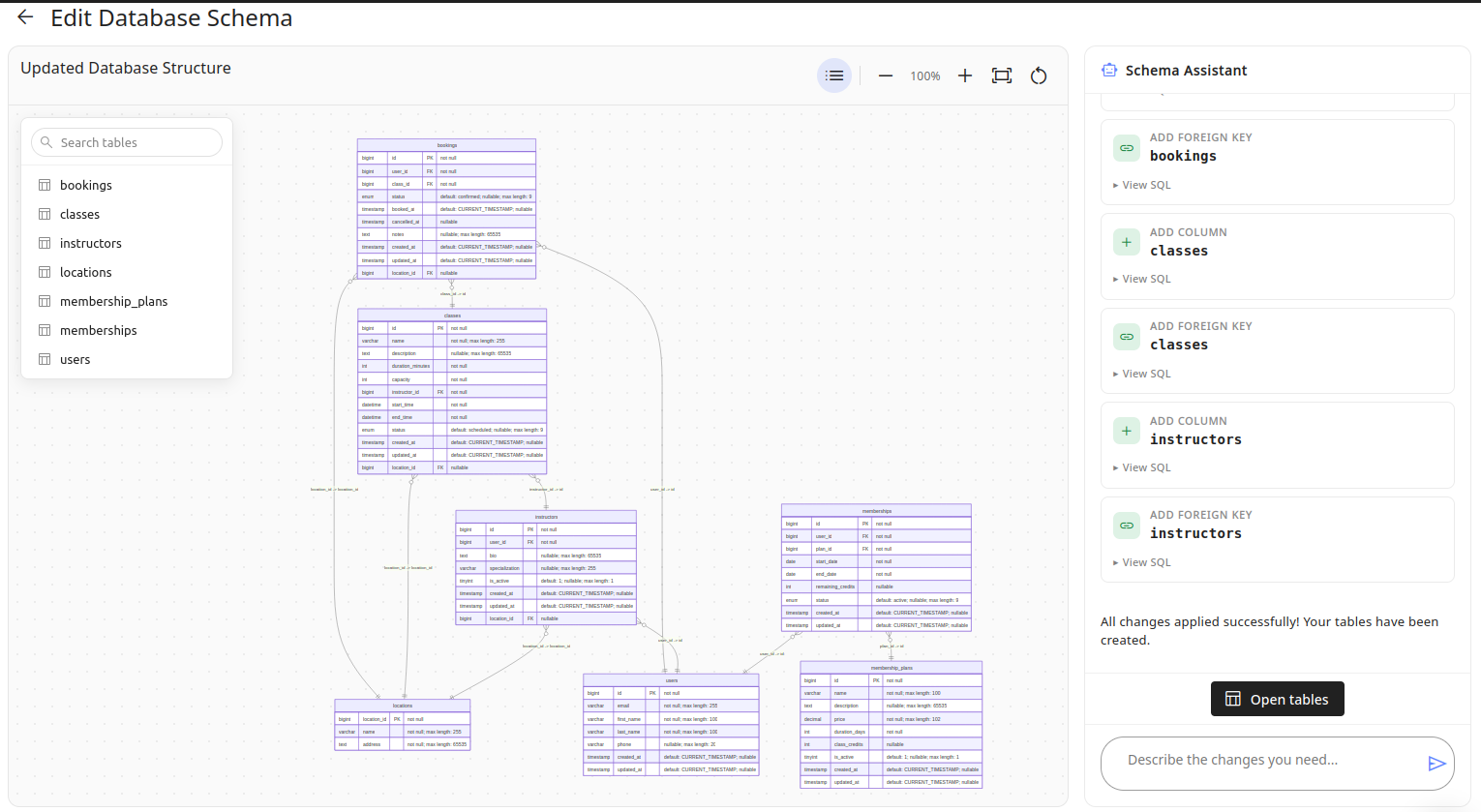
You can now navigate to the Tables menu and start adding data: