Single sign-on configuration
Rocketadmin supports the Single sign-on (SSO) authentication scheme to simplify identity management. When the SSO feature is enabled, team members can access their accounts without the necessity of creating or managing an additional password.
The SSO functionality is part of the Rocketadmin Enterprise pricing plan.
Although this manual primarily focuses on OneLogin settings as an example, you can use it as a reference guide and configure other identity and access management providers.
Configuring SSO
OneLogin settings
-
Sign in to your Onelogin account.
-
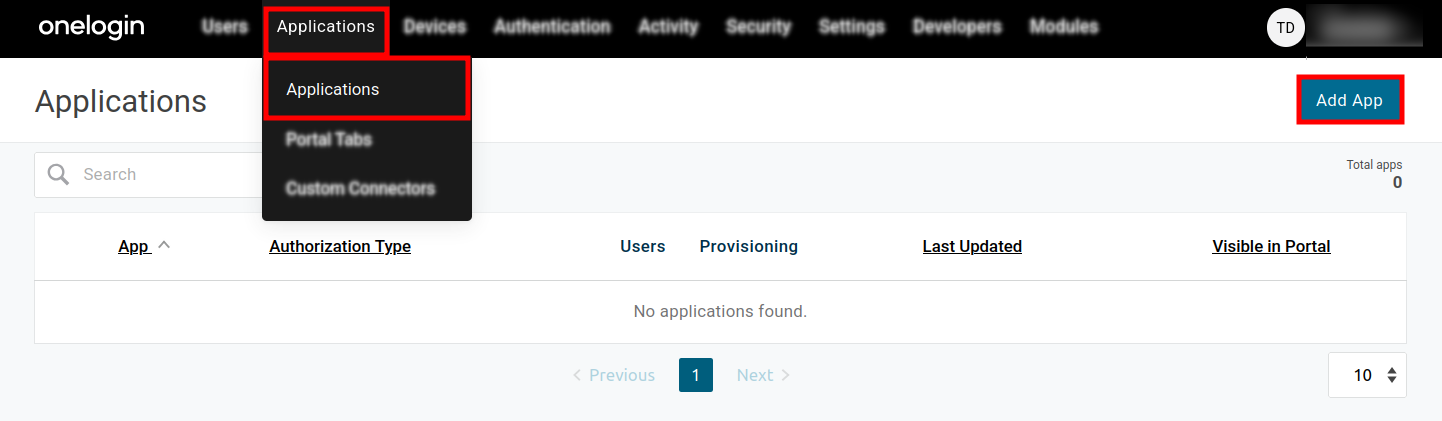
From the Dashboard navigate to Applications menu and click on Applications:
-
Click on Add App.
-
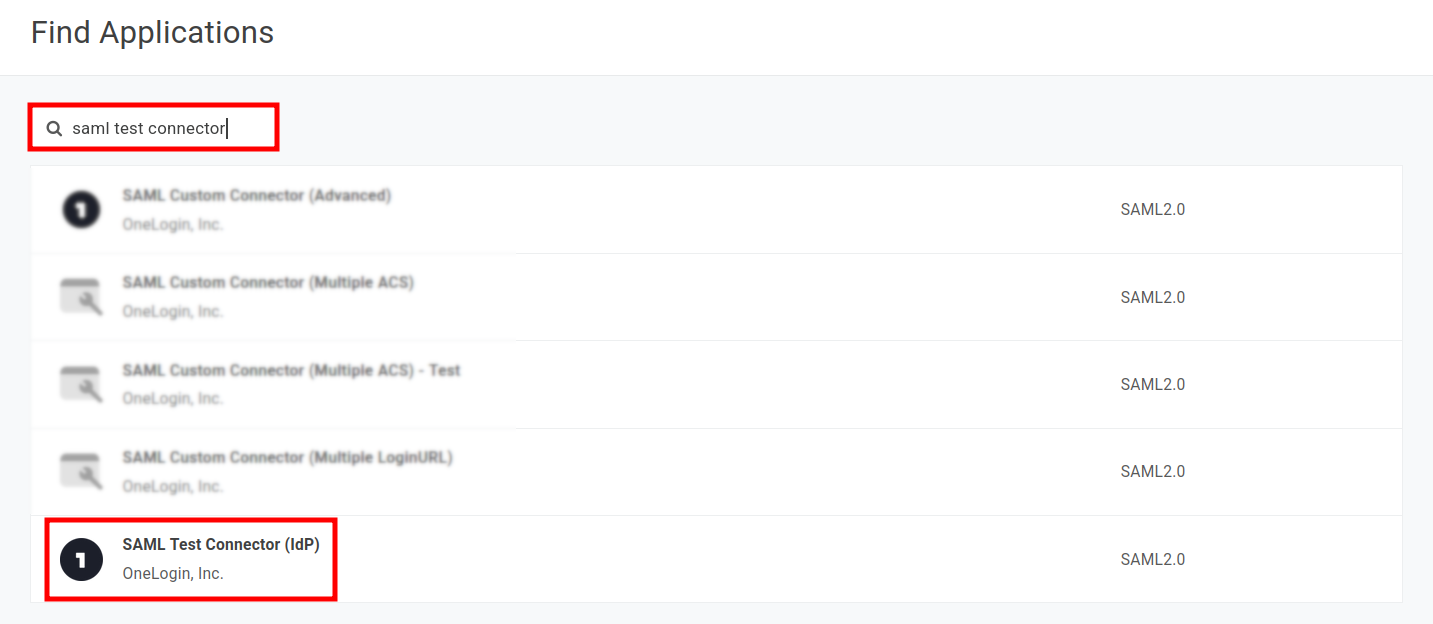
The next step is to search for SAML Test Connector (IdP) and select the result:
-
In the Configuration section enter a display name for the application:
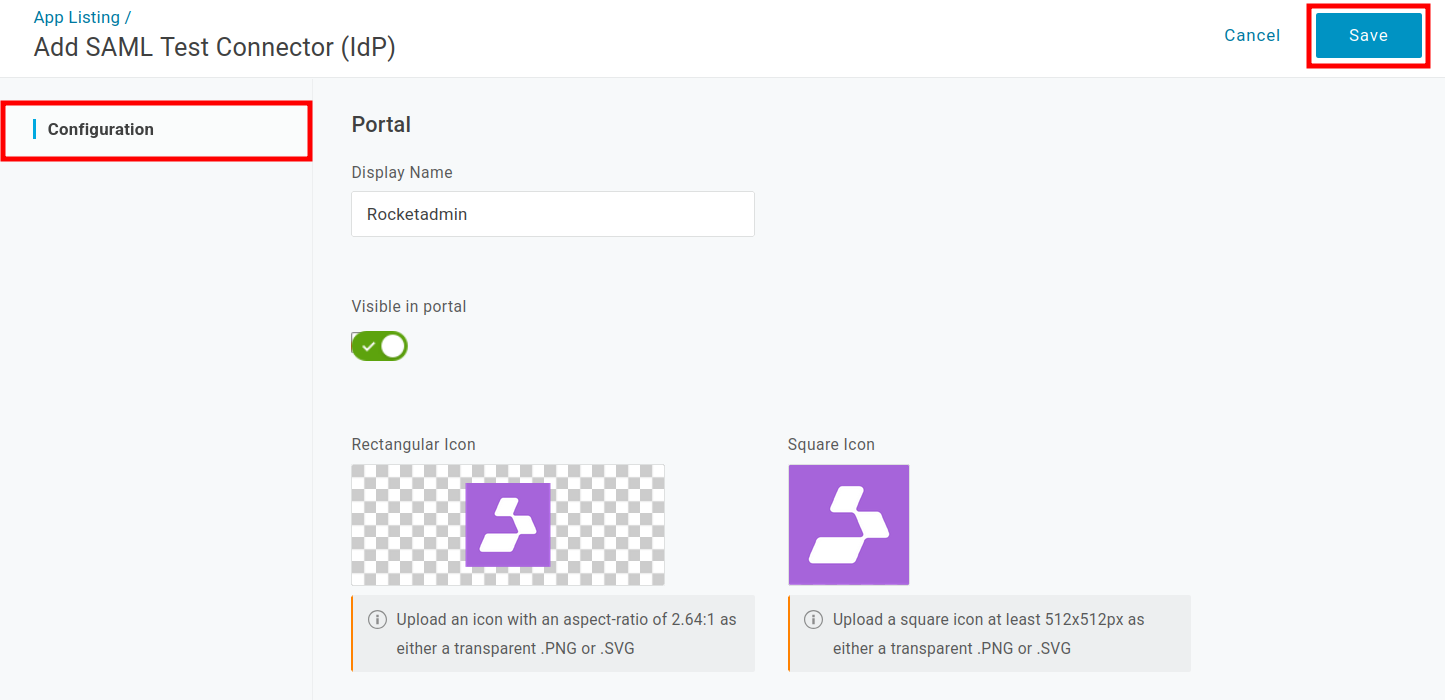
Optionally, you can add icons, short description and/or notes.
-
Click on Save to unlock the rest of the Configuration details.
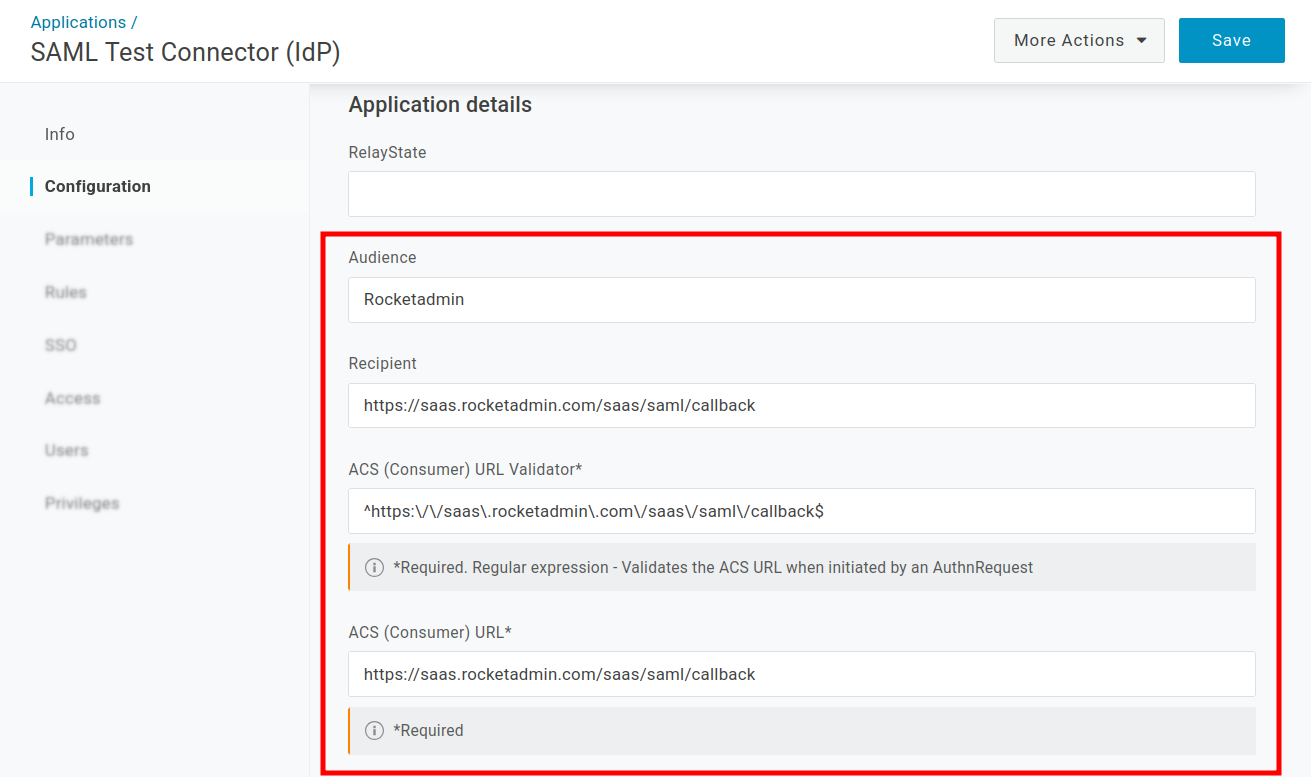
Provide the following information:
-
Audience: Rocketadmin
-
ACS (Consumer) URL Validator*: ^https:\/\/saas\.rocketadmin\.com\/saas\/saml\/callback$
-
ACS (Consumer) URL*: https://saas.rocketadmin.com/saas/saml/callback
-
-
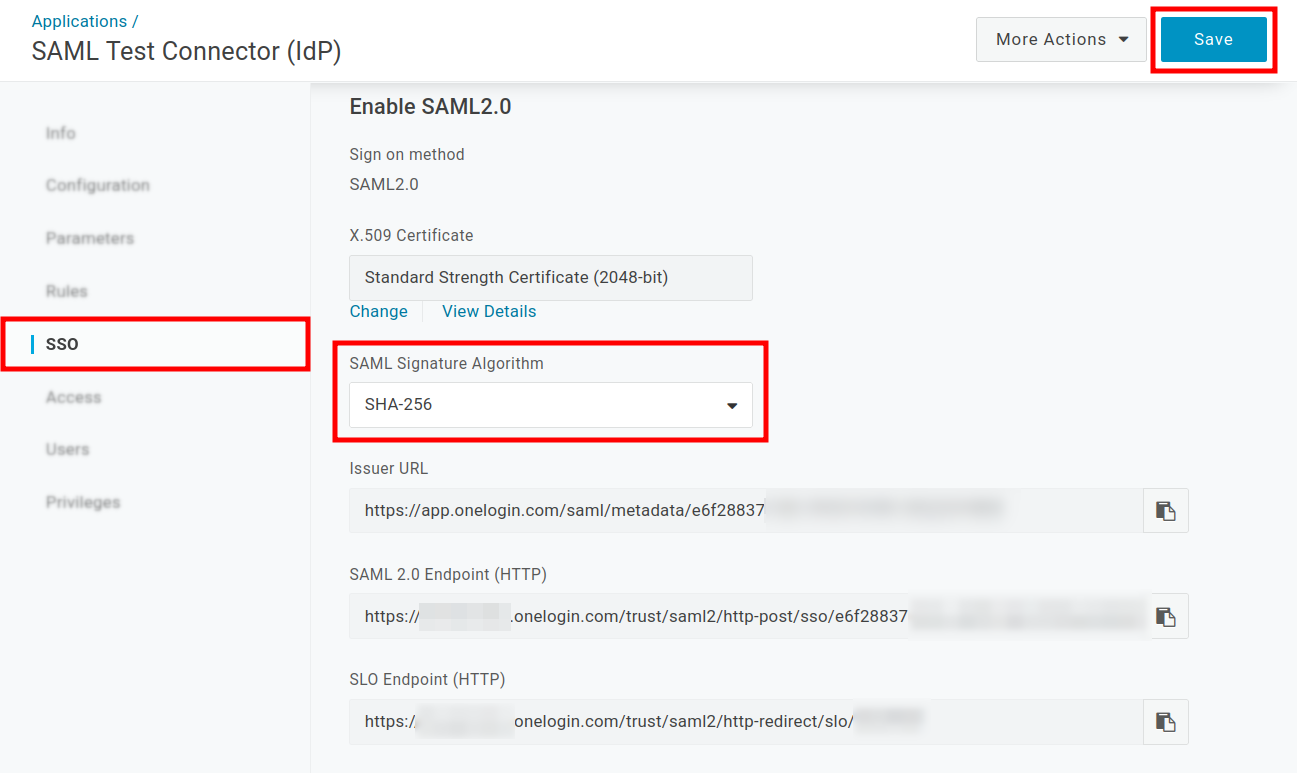
Navigate to the SSO section.
-
Set the SAML Signature Algorithm to SHA-256:
-
Save the changes.
-
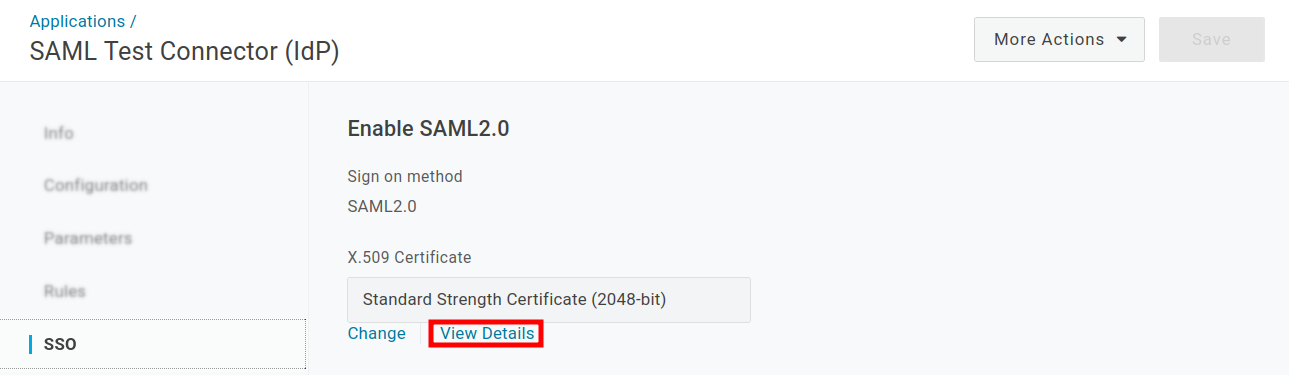
Open the X.509 Certificate by clicking on View Details:
-
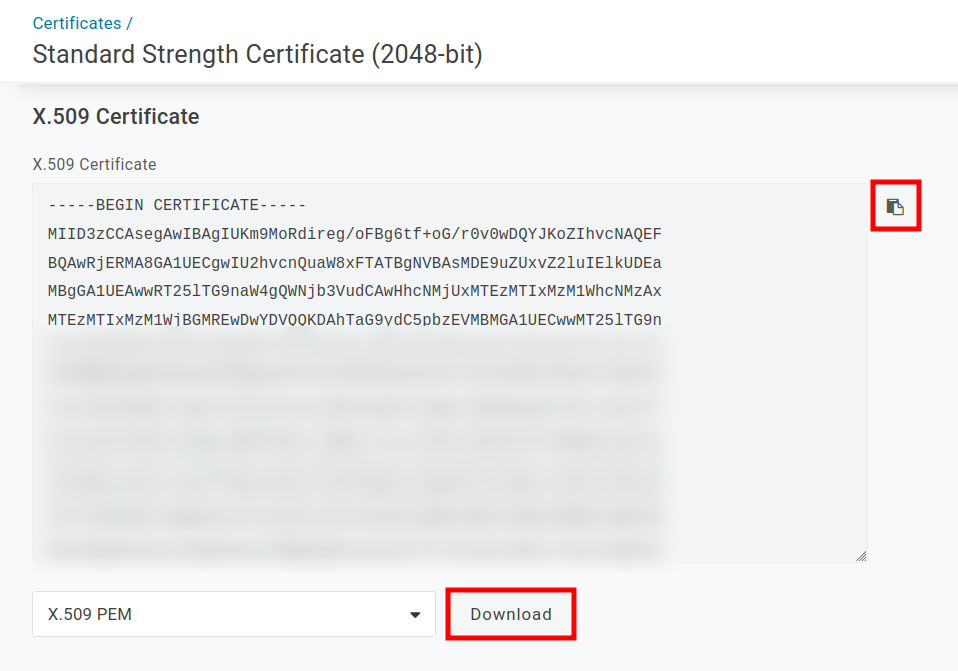
Copy or download the certificate and store it in a safe place:
-
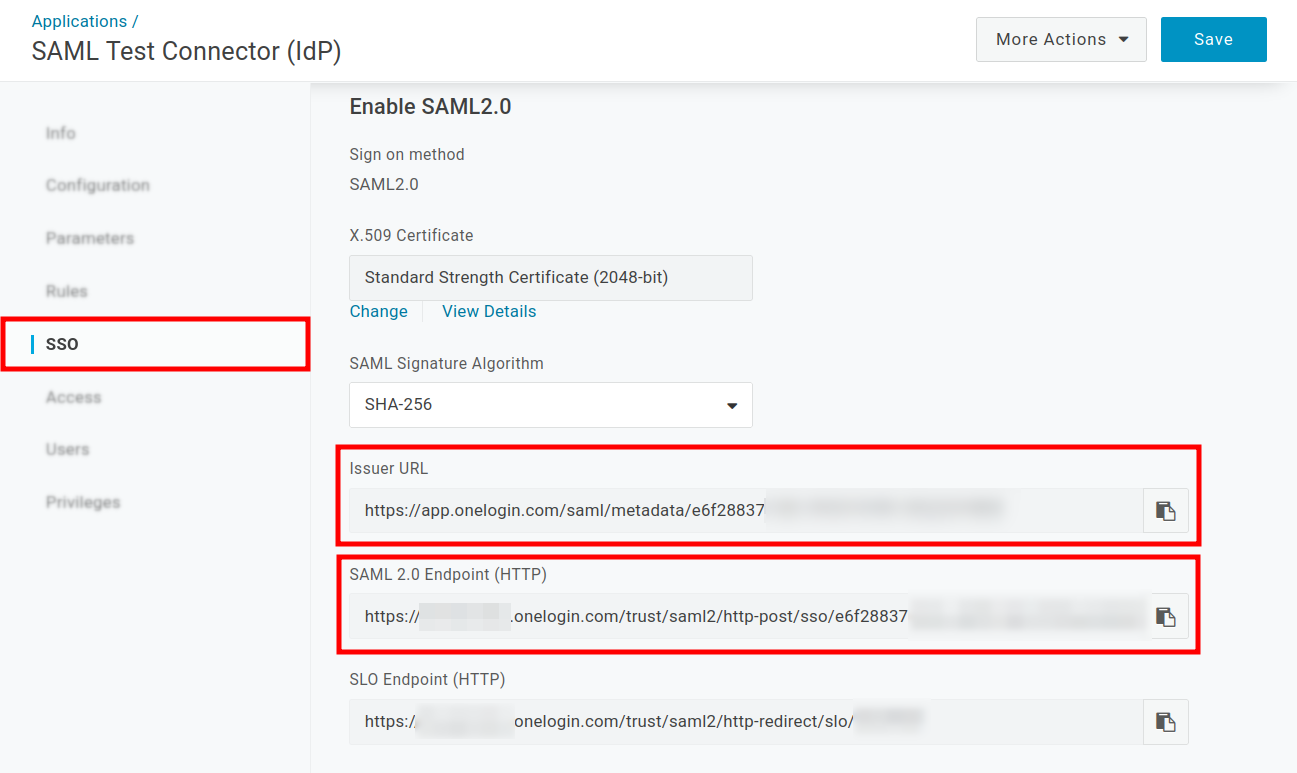
Copy the Issuer URL and the SAML 2.0 Endpoint:
-
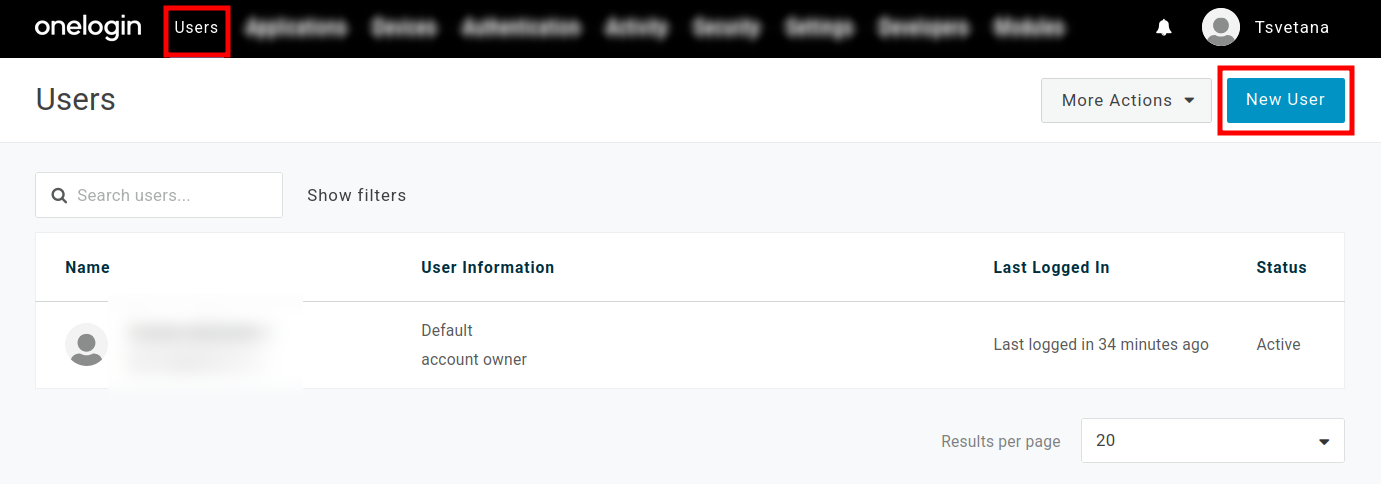
Create a new user:
-
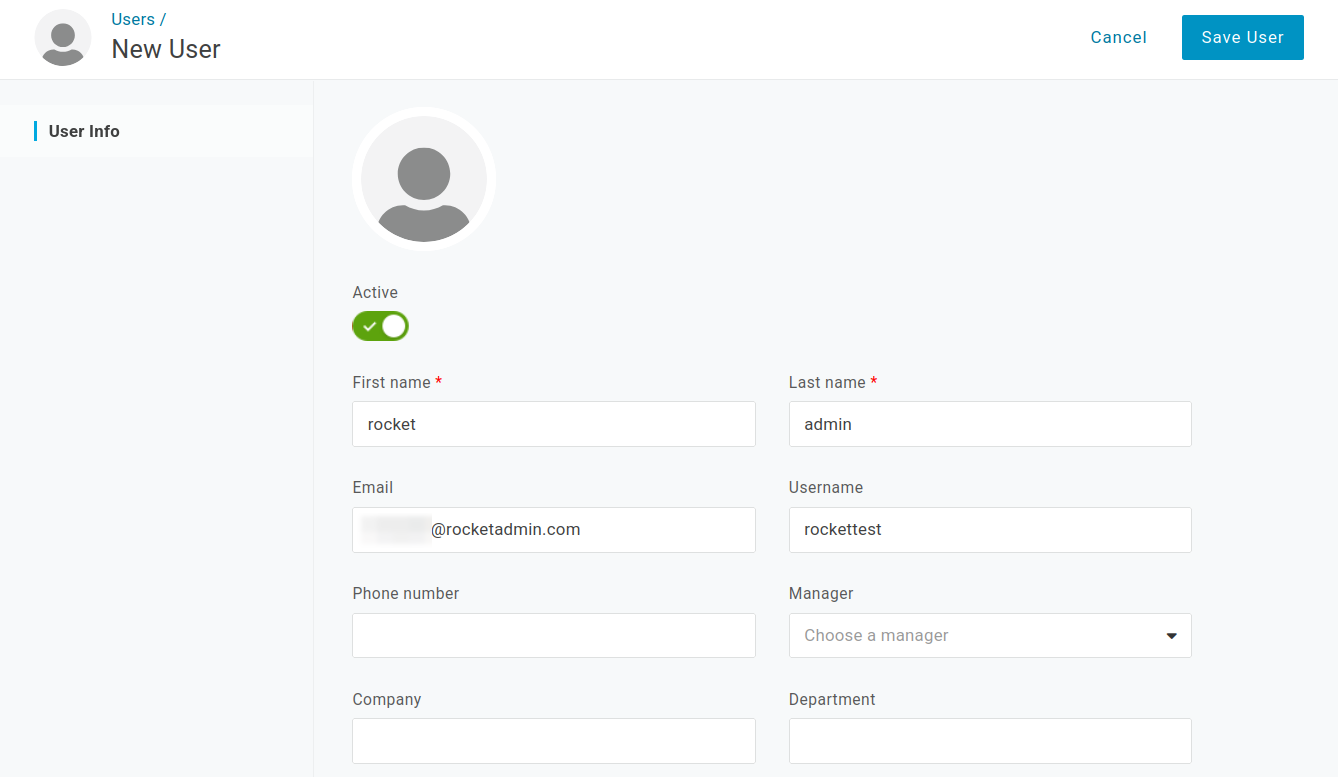
Provide the needed information, for example:
-
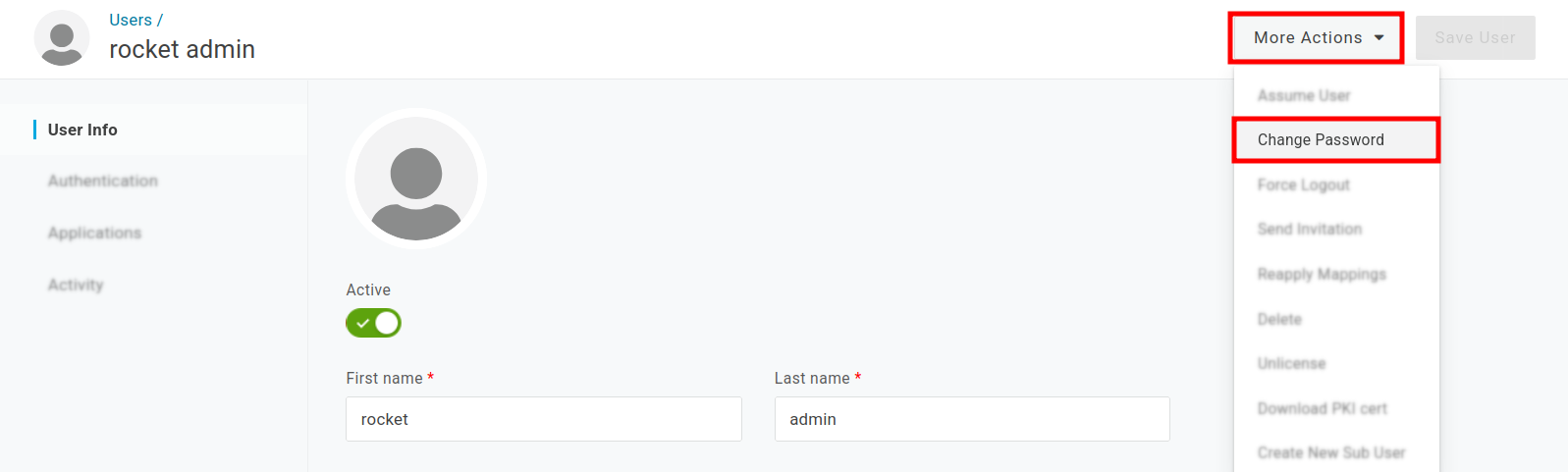
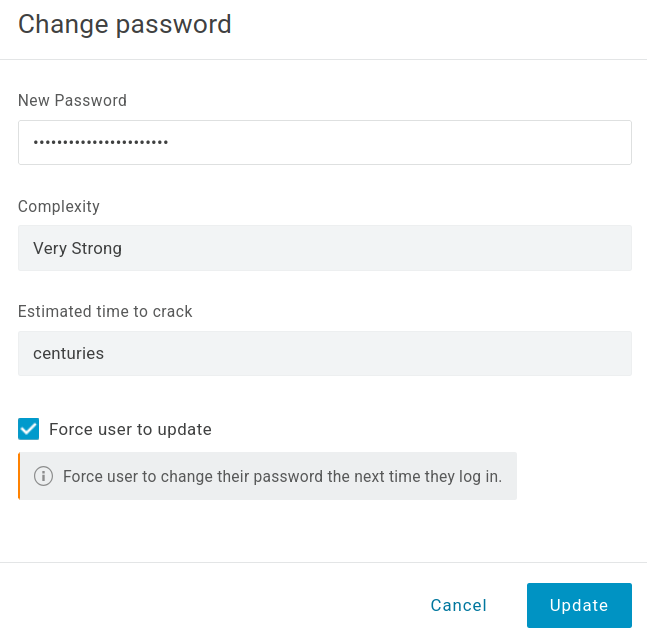
Configure password for the user (More Actions -> Change Password and when ready, click on Update):
-
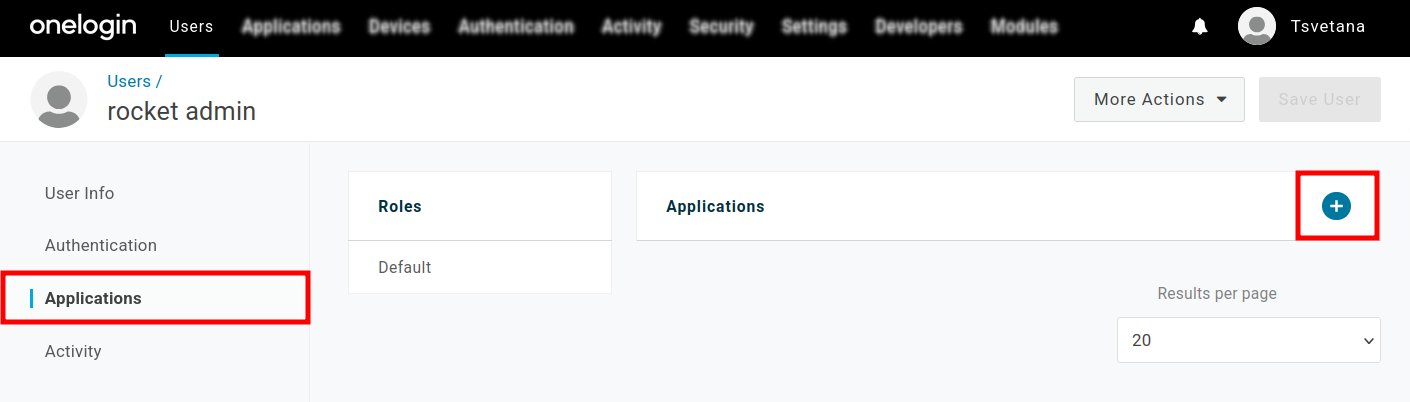
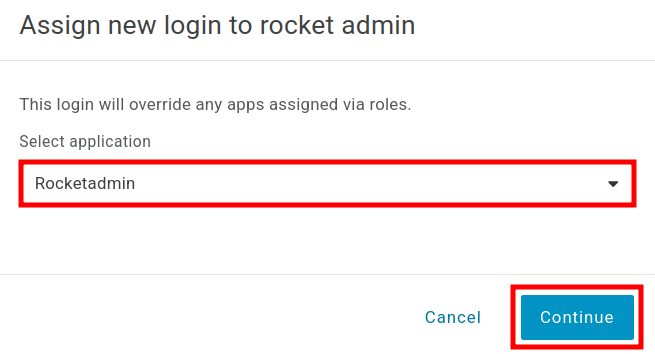
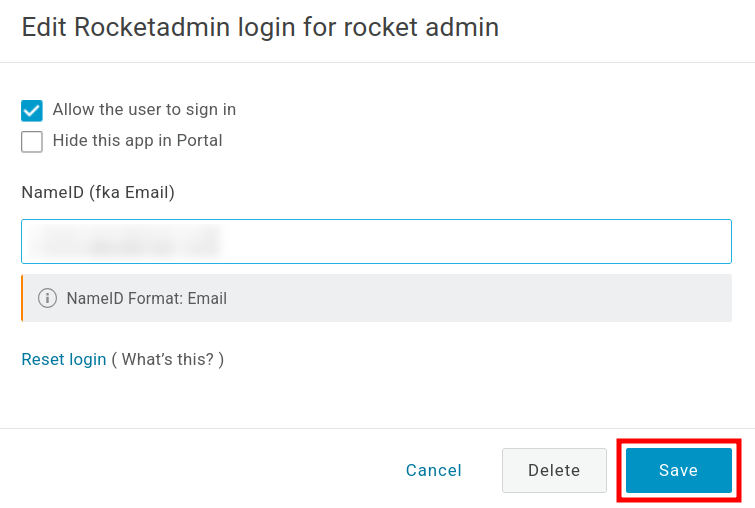
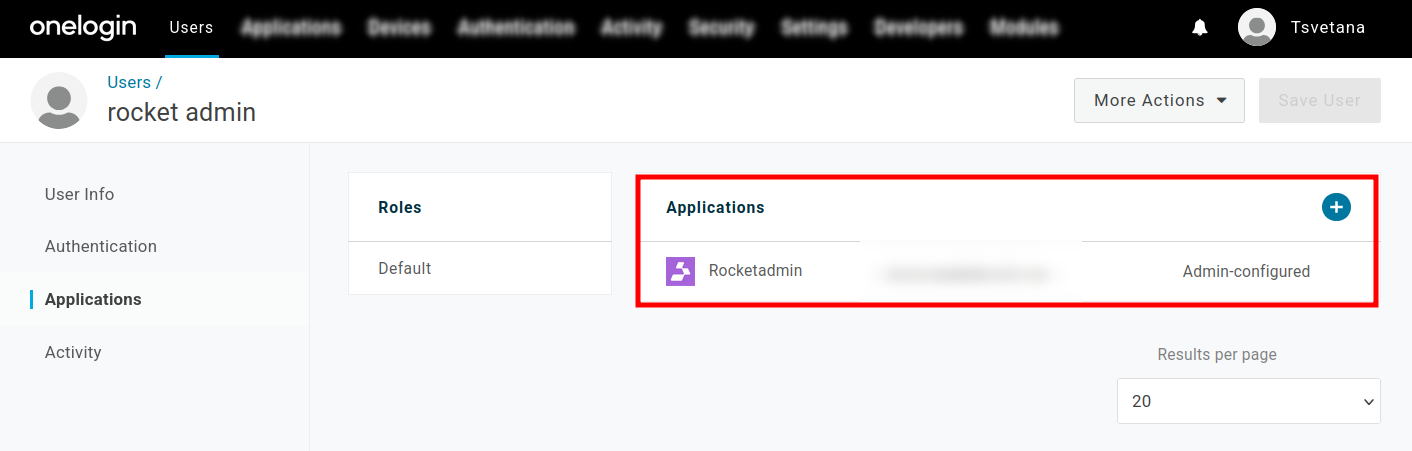
Navigate to the Applications settings of the user and add the application you just created:
-
Save the changes. The application is now added:
Rocketadmin settings
-
Sign in to your Rocketadmin account.
-
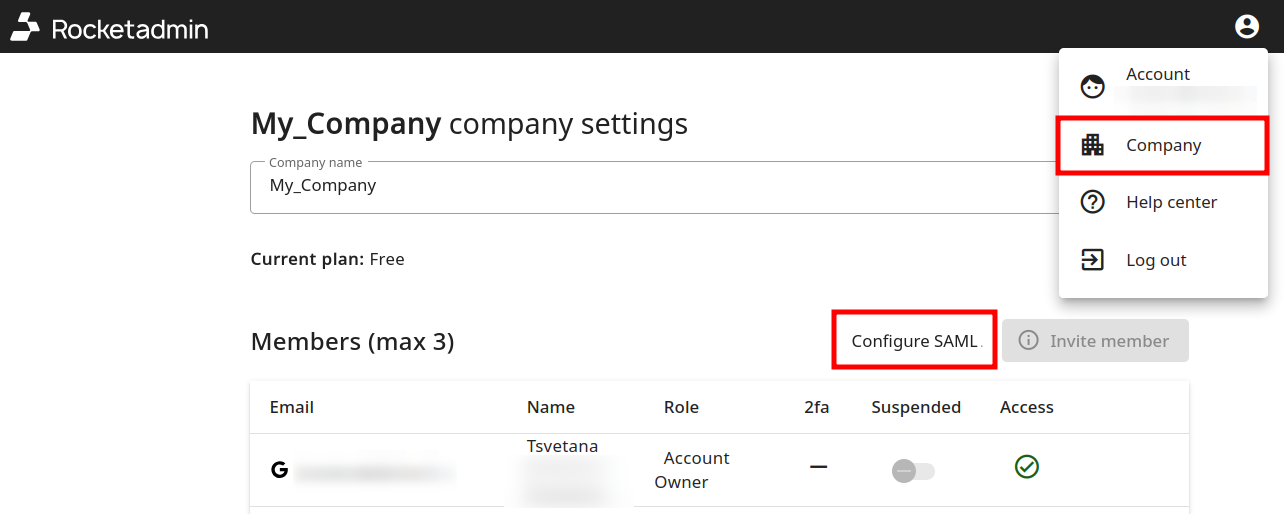
From the Dashboard, click on and navigate to the Company settings:
-
Click on Configure SAML.
-
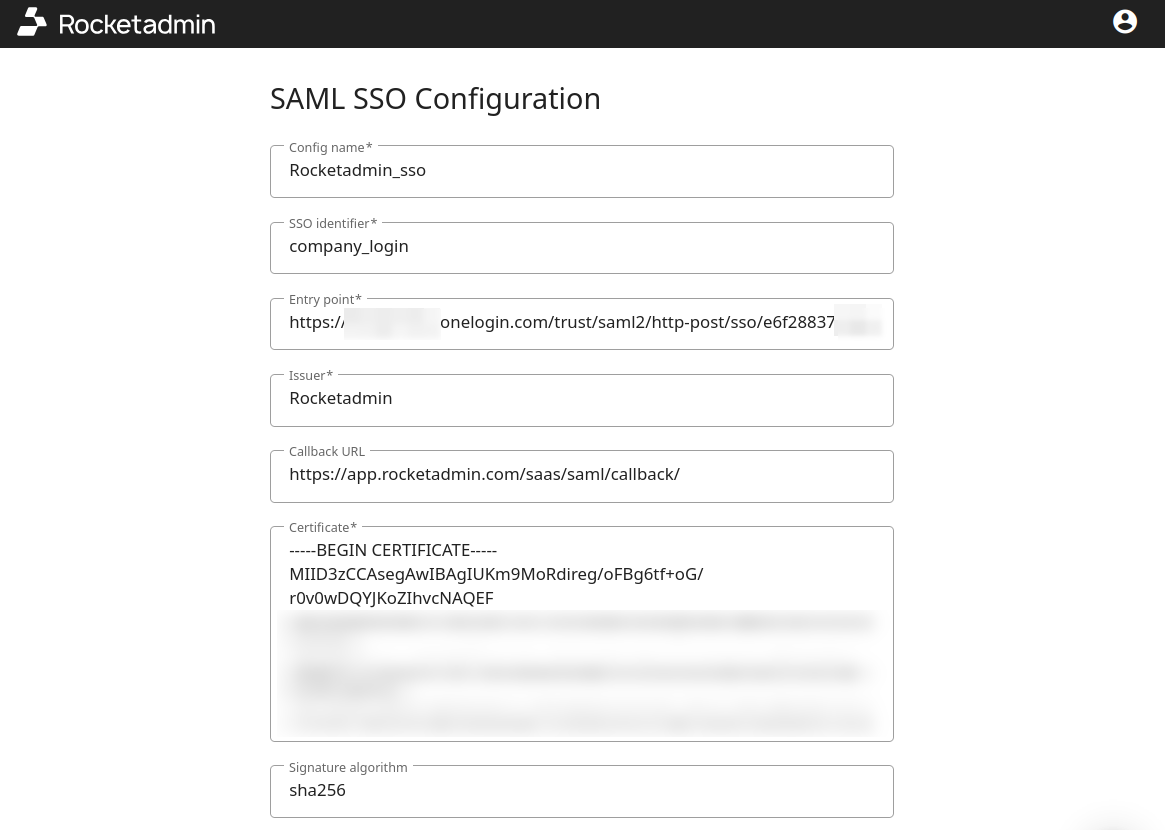
In the SAML SSO Configuration screen provide the following information:
-
Config name - a name for the configuration
-
SSO identifier - a unique string to identify your company's account for single sign-on (SSO) services
-
Entry point - paste in this field the copied SAML 2.0 Endpoint
-
Issuer - enter Rocketadmin
-
Callback URL - enter ther Rocketadmin callback URL https://saas.rocketadmin.com/saas/saml/callback
-
Certificate - paste the certificate which you copied or downloaded
-
Signature algorithm - select SHA-256
-
-
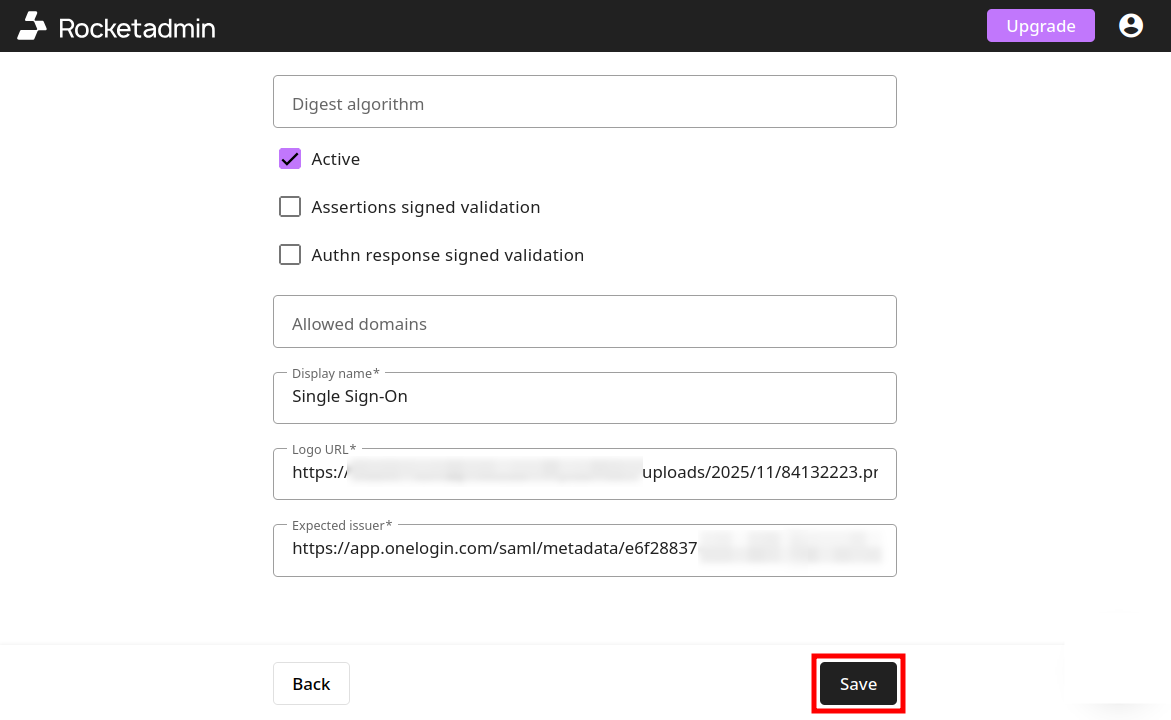
SAML SSO Configuration settings (continued):
-
Digest algorithm -
-
Active - enable the configuration
-
Assertions signed validation -
-
Authn response signed validation -
-
Allowed domains -
-
Display name - provide a meaningful display name
-
Logo URL - enter your company logo's URL
-
Expected issuer - paste in this field the copied Issuer URL
-
-
Click on Save to apply the changes.
Testing the SSO configuration
-
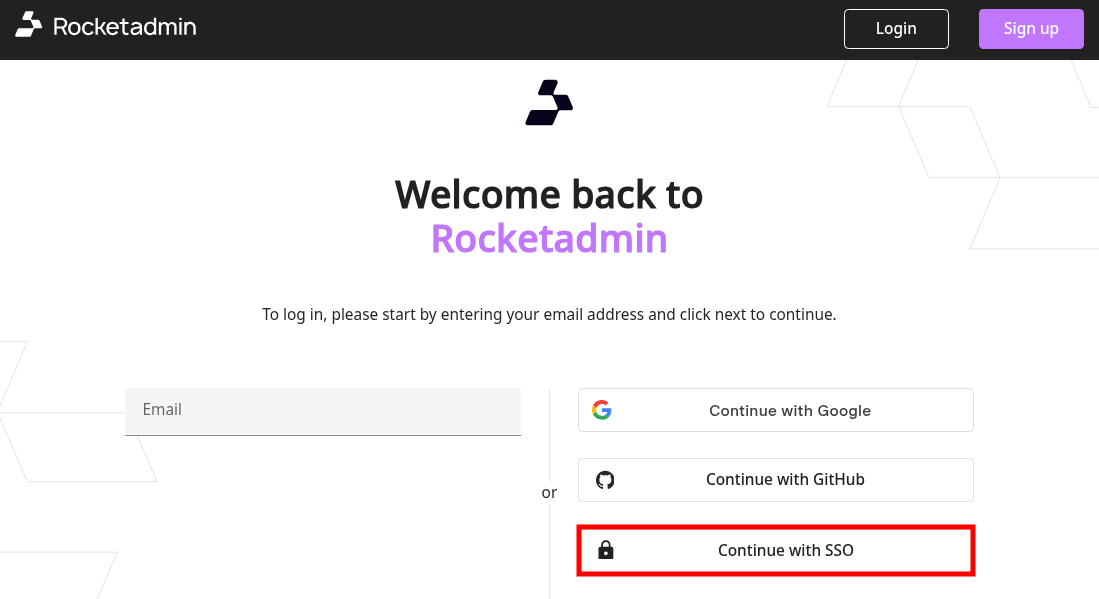
Open the Rocketadmin app login page and click on Continue with SSO:
-
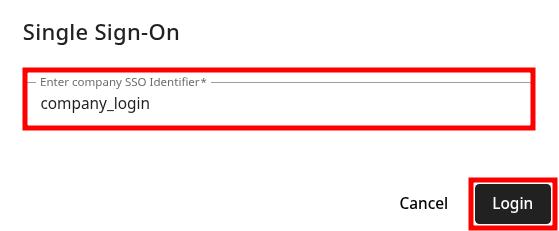
In the next screen enter your company's SSO identifier:
-
Click on Login.
-
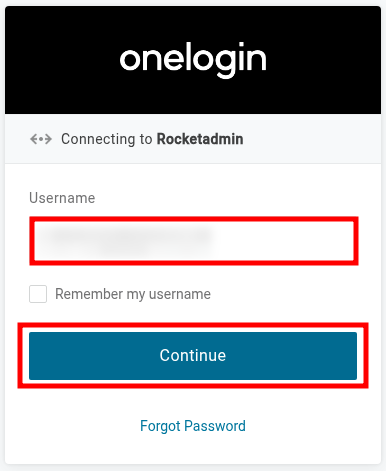
Enter the Username (or email address) of the OneLogin user:
-
Click on Continue.
-
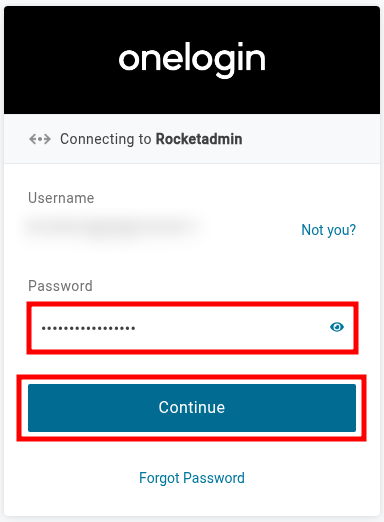
Enter the user's password:
-
Click on Continue.
The user's account has successfully signed in to the Rocketadmin app: